
USER MODE
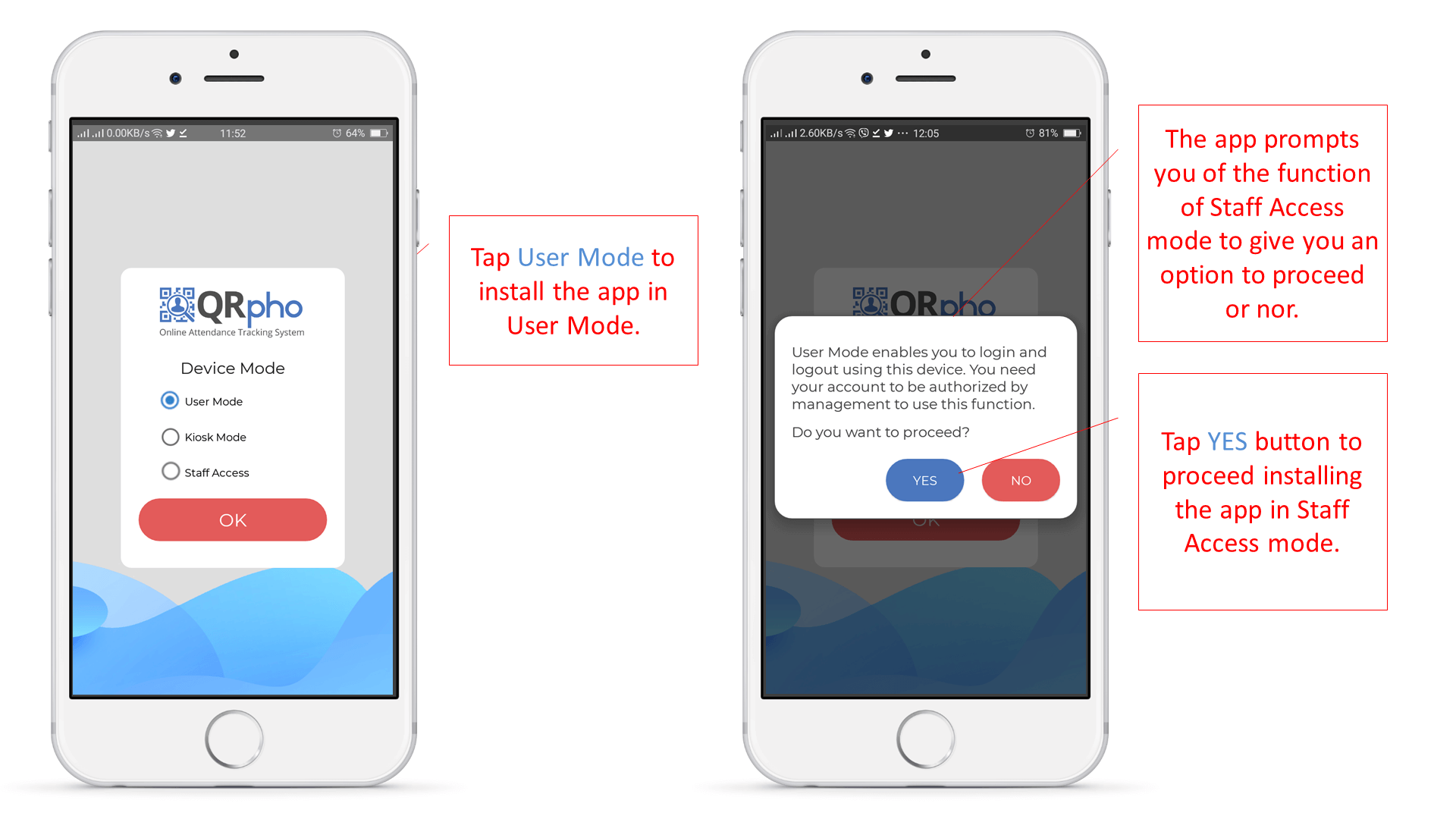
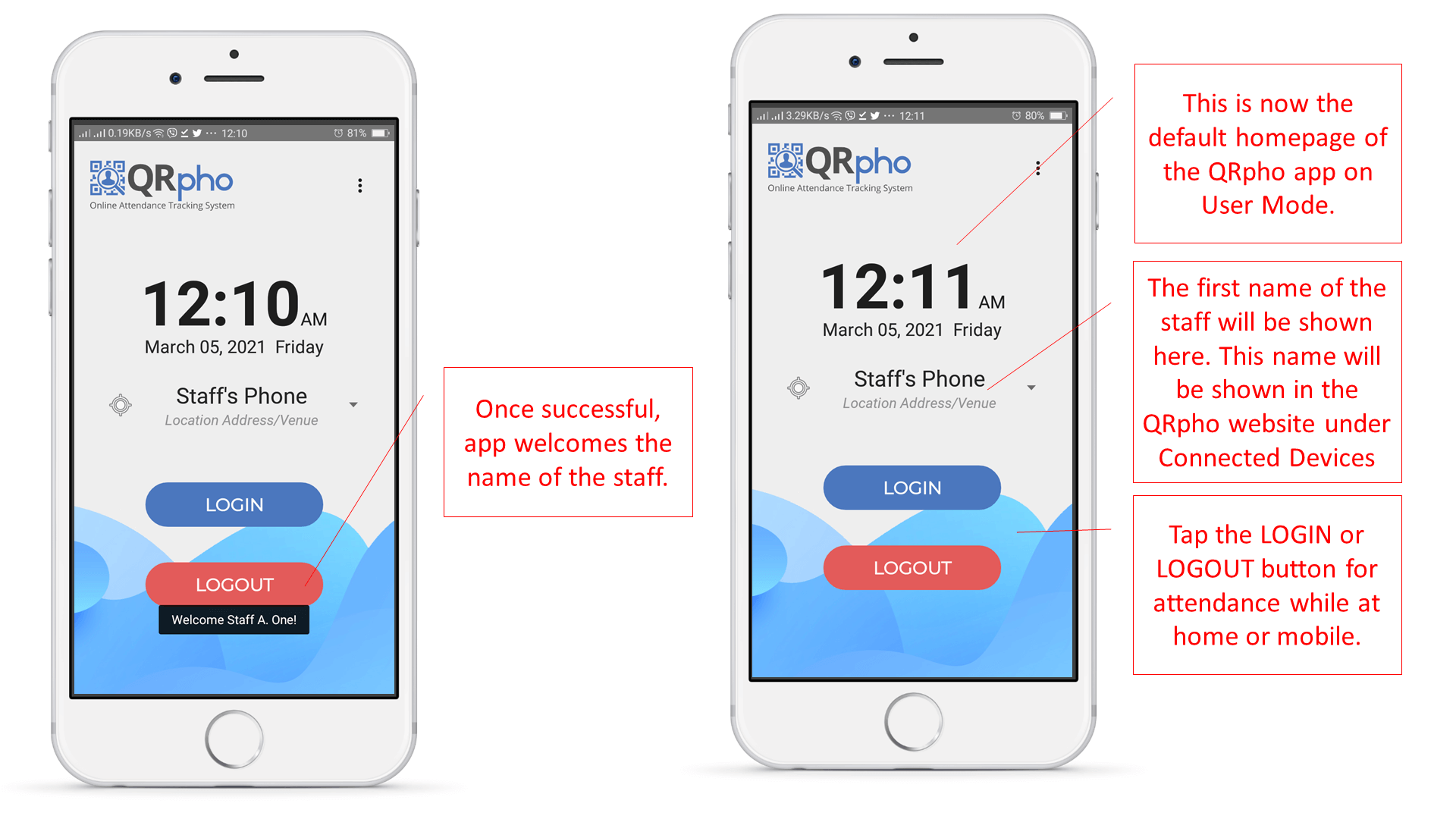
User Mode option allows the employee to login and logout anywhere anytime even outside of the office using his/her own personal cellphone. There is no need for the QR Code ID since the employee uses his/her own cellphone to login/logout and the app already identified the employee. The employees just taps the LOGIN and LOGOUT button to capture his/her attendance at home or anywhere.
This is useful for employees or officers who make rounds on the different offices or branches of the company or for those on work-from-home arrangements. It can also be used when employees are attending official conferences for several days in locations far from the office. Just require a specific background of the event when the employees’ login/logout to ensure that they are really attending the event.
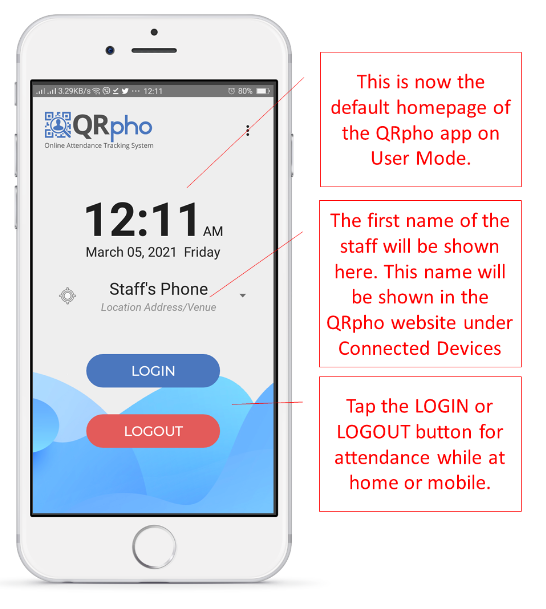
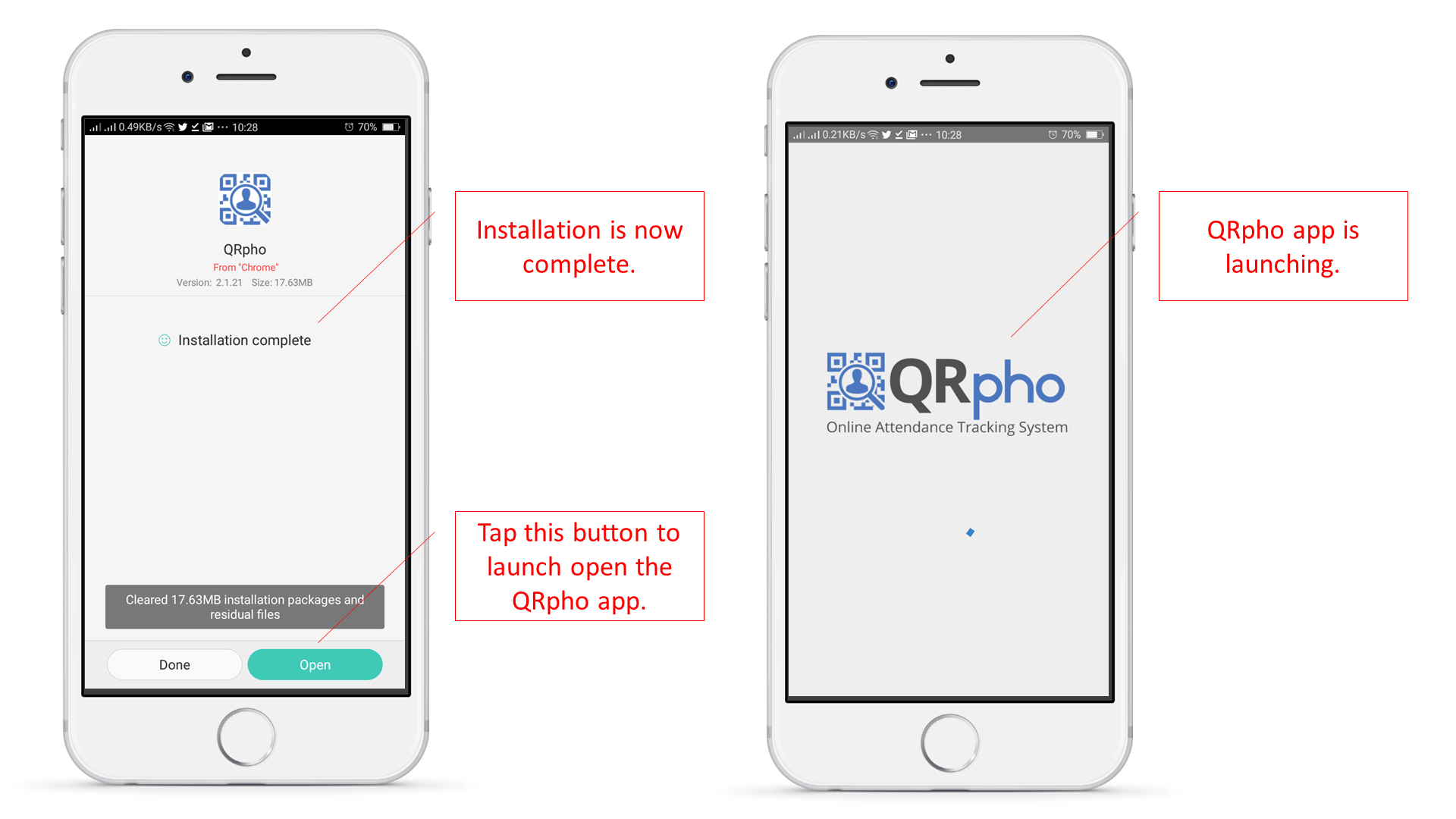
HOW TO INSTALL QRPHO APP ON USER MODE:
THINGS TO PREPARE:
- Cellphone of the employee – connected to the internet via Wifi or mobile data
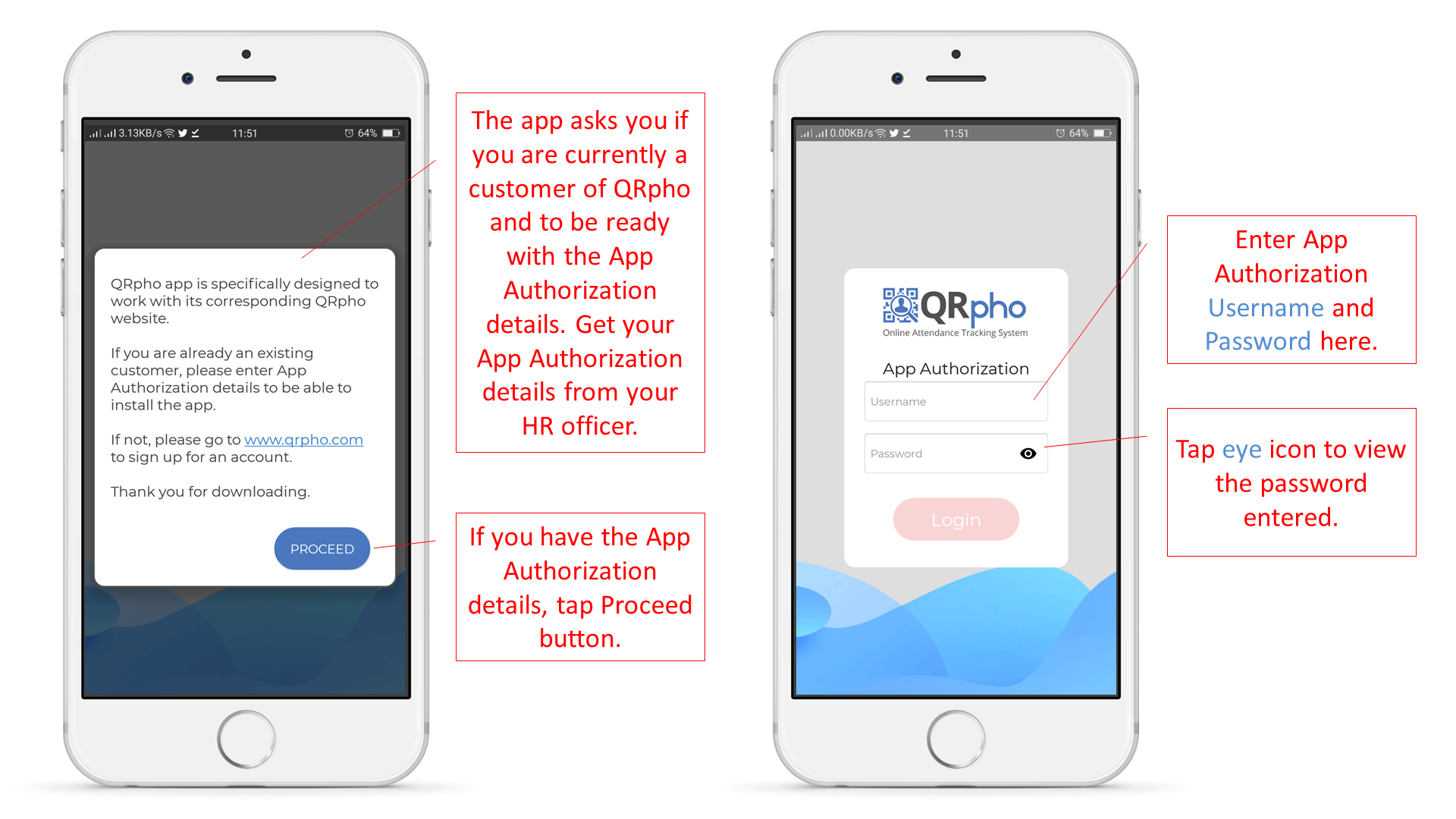
- App Authorization username and password – get from HR, can be found in the App Authorization menu of the QRpho website.
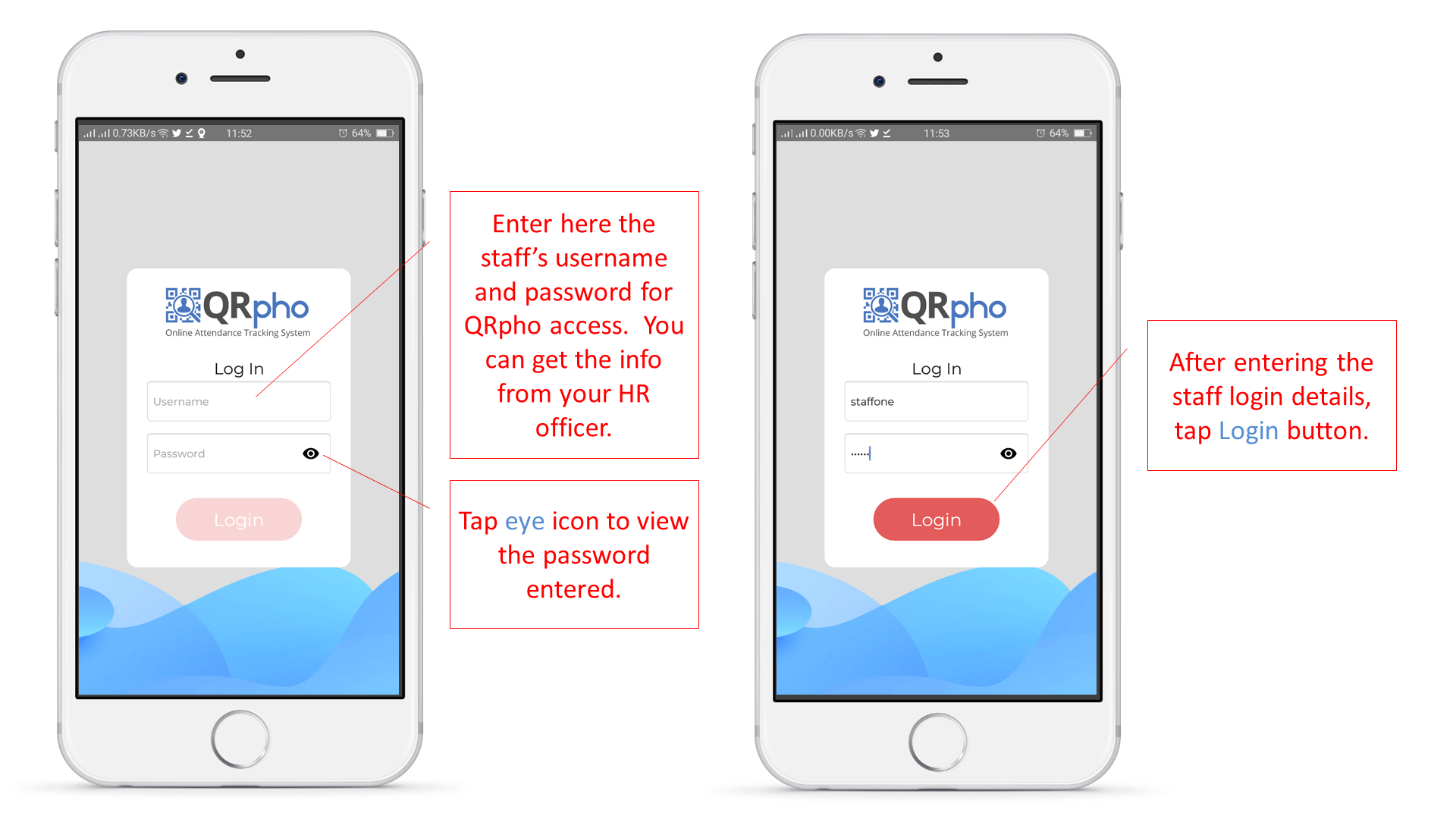
- Staff Username and password – get from HR, can be found in the Users menu.
PROCEDURES:
Follow the procedures below
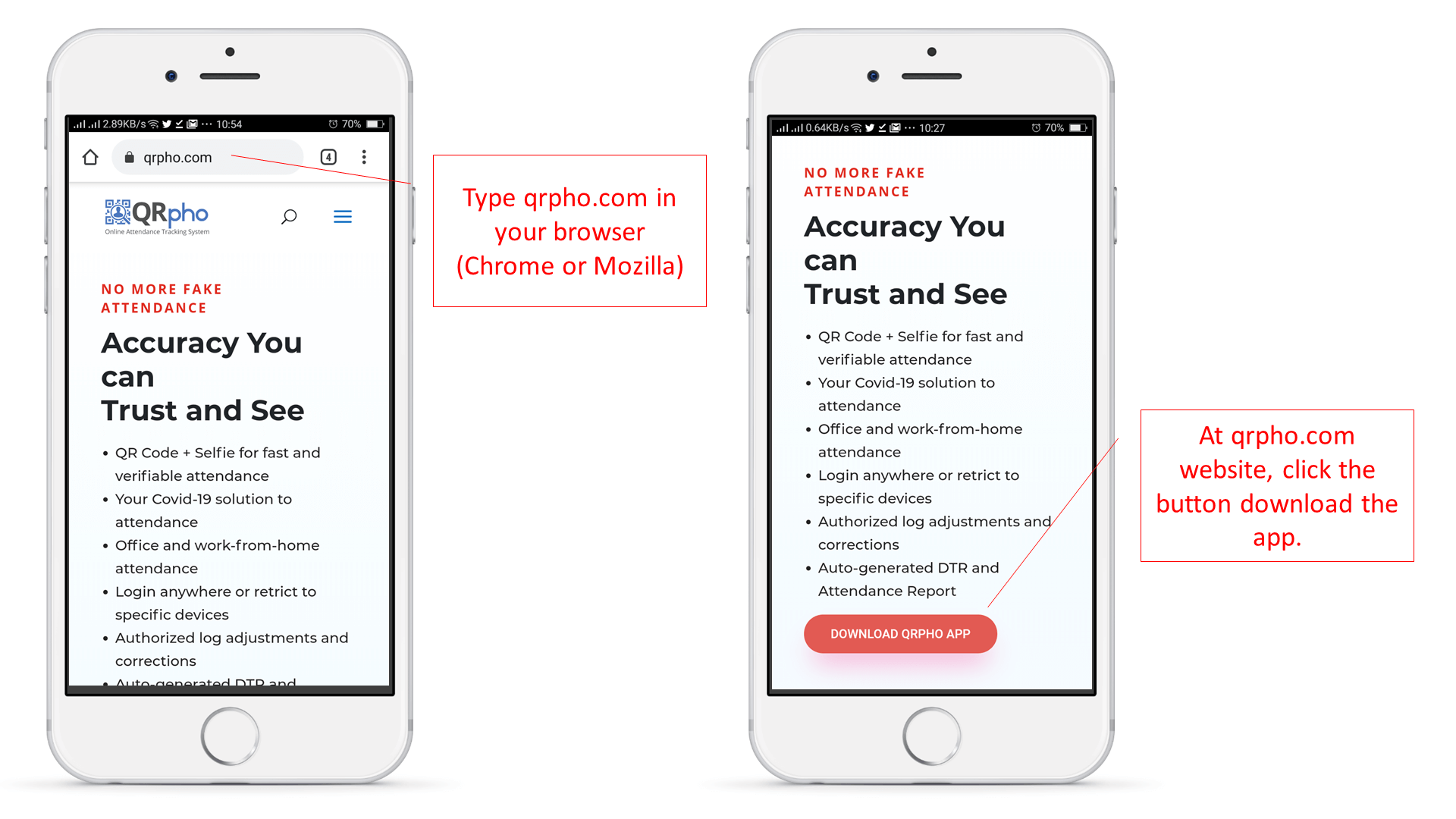
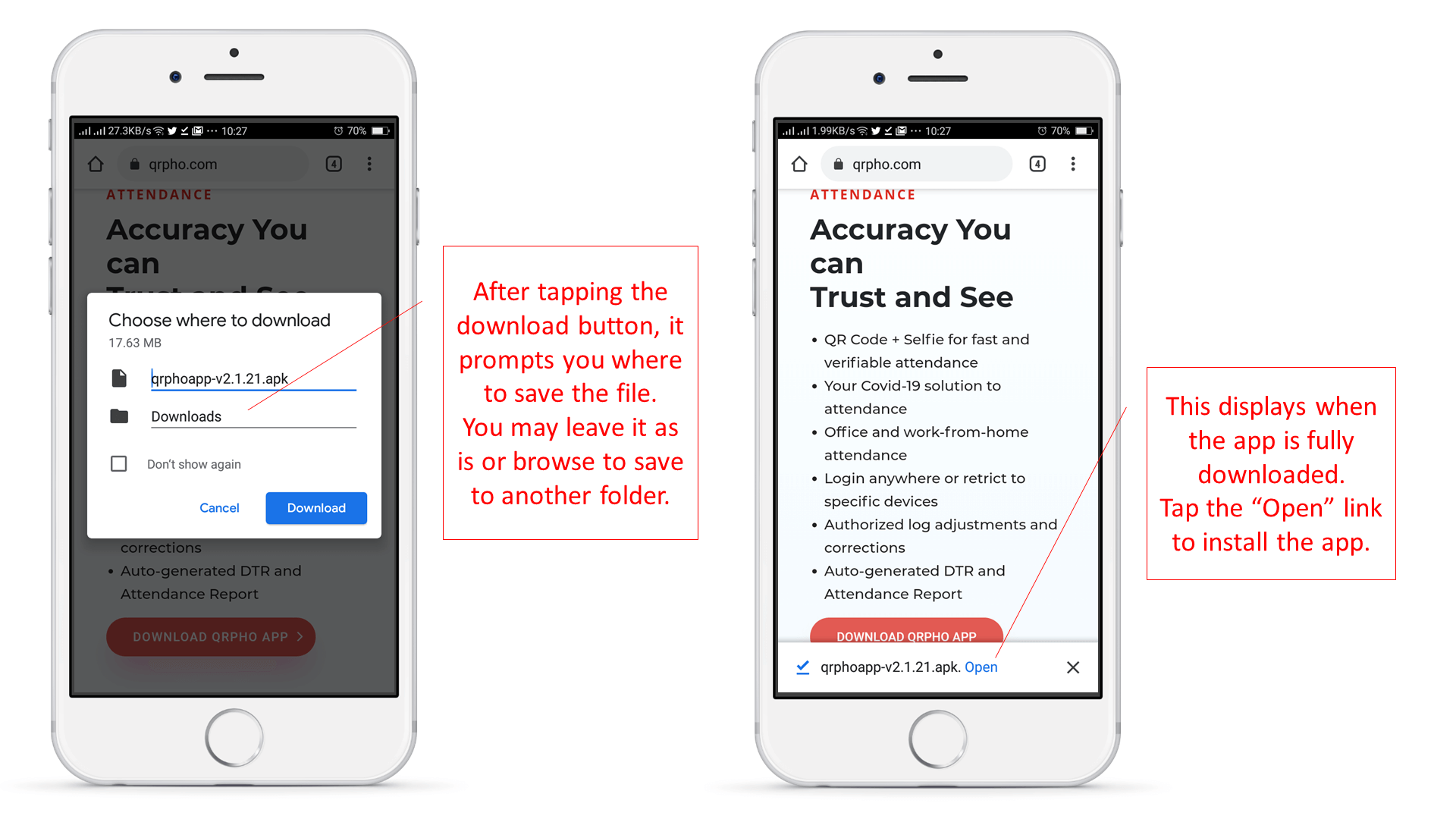
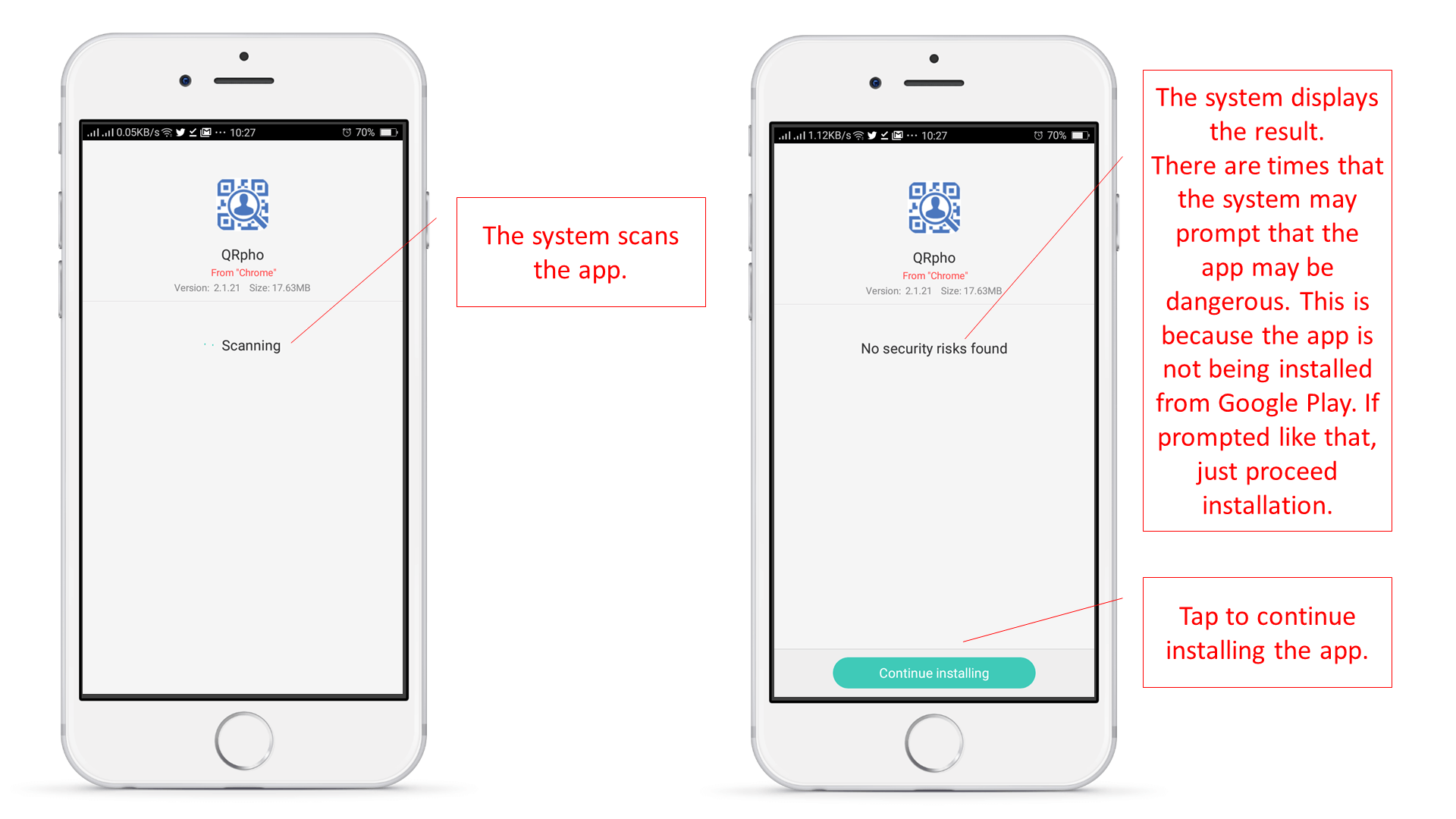


[su_note note_color=”#fed6e5″ radius=”5″]
Click here to know How to Set QRpho in User Mode .
[/su_note]